
During my time at GMU, I did an independent study, where I recreated the Quick Access Inventory from The Legend of Zelda: Tears of the Kingdom and proposed a new sorting and information display system. This project allowed me to learn what is needed for an in-depth inventory system as well as analyze various design decisions that go along with that type of system. While you can’t “use” any of the items in this demo, the project is structured so it could be scaled to a practical level should I find myself needing to make a fully functioning inventory one day.
Check out TotK Quick Acess Inventory Recreation on itch.io
Breaking Down the TotK Quick Access Inventory
During gameplay, players can hold the up arrow on the D-pad to bring up a single row bar displaying most of their inventory. This “Quick Access Inventory” is primarily used to throw or fuse items during combat, however most fans view it as frustrating. I believe this frustration primarily comes from how they are sorted and displayed.

Since Tears of the Kingdom is a sequel, its inventory is derived from its predecessor, Breath of the Wild. These two games have different priorities with the materials you collect. BotW primarily used its collectable resources for cooking meals and elixirs while TotK introduced a new mechanic where you can fuse materials to weapons to increase their strength and add additional effects. However, TotK keeps BotW’s default sorting, so dozens of food and elixir ingredients appear before monster parts, the most useful fuse category. The other sorting options are Fuse Attack (high to low), Most Used and Zonai. While these options are better than none, they are not adequate for the experience. Fuse Attack does not tell you the exact fuse power, Most Used does not encourage using new or rare items, and Zonai is only good for getting the Zonai devices, the last category in default sorting. The Quick Access Inventory can display close to 250 items so these annoyances quickly add up to frustration.
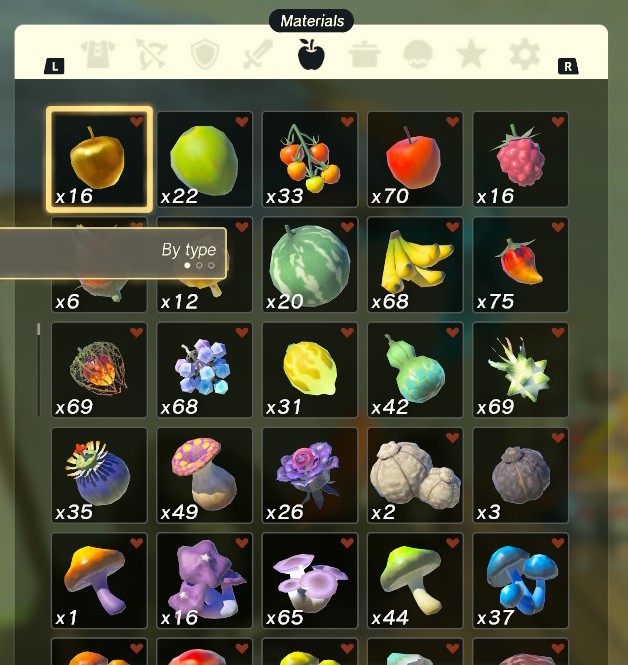
So while I chose to recreate the visuals and functionality of the Quick Access Inventory, I created my own sorting methods and chose to display additional information to propose an alternative approach to the Quick Access Inventory.
What’s Different
First thing I did was reduce the amount of items that can be displayed. TotK does not display any critters or seafood in the quick inventory since they can not be fused, so I felt it was appropriate to remove items that had a fuse power of 1 and no additional effects (ex. most food). Doing this left me with 173 items in the quick inventory. I put these remaining items into categories reminiscent of their original categories but in an alternative order to serve as the default sorting method. Each item has three additional stats they can be sorted by, Fuse Attack Power, Element Type, and Weapon Type. Fuse Attack sorting goes from both low to high and high to low. Weapon sorting goes in the order of blade, hammer, whip, homing, soaring, zonai, and none. Elemental sorting goes fire, explosion, ice, electricity, water, wind, disorient, glow, wood, bounce, and none. Weapon and Elemental sorting will order objects of the same type by Fuse Attack Power (low to high).
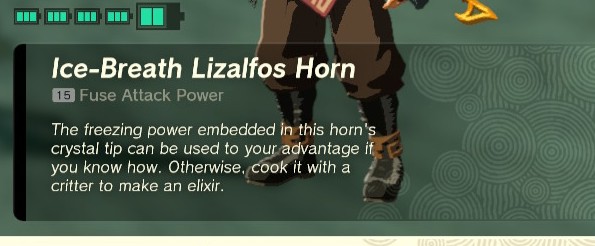

In the quick inventory UI, I added a row that displayed the fuse attack power, an icon for the element and an icon for the weapon. All this information is avalible in the TotK’s pause menu inventory, so I felt the player should have access to this information in the quick access inventory as well.
Putting It All Together
Inventory and Items
The items were first organized in a spreadsheet, then parsed into an item database, saving each item as an InventoryItem struct, with the items name, fuse attack power, element, weapon and icon. The Player Inventory consists of a list of InventoryEntry structs, which points to the location of an InventoryItem in the Item database, along with the quantity of the item and whether or not it’s selected. The player inventory also handles the sorting operations.


UI display
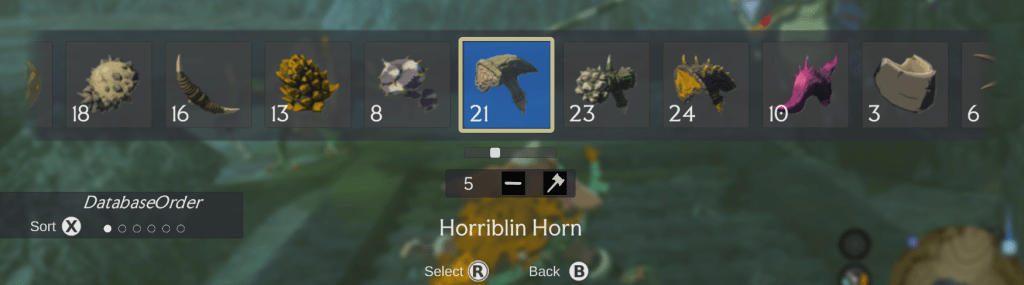
The code that goes into displaying the UI is spread across multiple scripts, communicating primarily through the use of events and delegates. The core script for the visual display of the inventory is UIScrolling. It listens for input and scrolls through the visual representation of the inventory, always smoothly landing on an item and never going beyond the bounds of the inventory. It knows exactly what item is selected and can get its information from the player inventory, display it and select/deselect it. The scripts ItemDisplaying and InventorySlotProperties handle the individual item slots. ItemDisplaying makes sure there is a proper amount of inventory slots for the player inventory then calls InventorySlotProperties to assign each slot its item icon, quantity and if it’s selected or not. The last script that goes into the UI is ShowHideUI, which pulls up and puts away the quick access inventory, making sure it isn’t reading input when it isn’t pulled up.
Inventory Size Slider
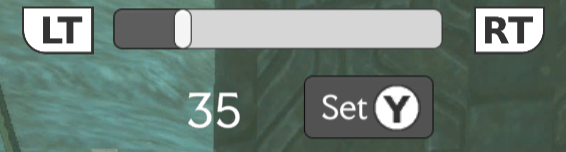
I added a slider that changes the number of items in the inventory, so users can see how the sorting works at different scales.
 Carlin (CJ) Jasper Portfolio